
E-PeakClipper500: Free VST3 Peak Clipper for Windows
A focused free clipper with soft and hard modes, up to x16 oversampling, peak-reduction metering and Delta monitoring.
E-PeakClipper500 is a free VST3 peak clipping plugin from Windows-G for Windows producers who want tighter transient control, extra loudness and a simple way to compare different clipping behaviours.
Rather than trying to be an all-in-one mastering suite, E-PeakClipper500 concentrates on clipping. It offers three clipping modes, separate input and output gain, an adjustable ceiling, dry/wet blending, oversampling up to x16 and detailed peak-reduction monitoring.
Completely free: Windows-G distributes E-PeakClipper500 through its official Gumroad page on a pay-what-you-want basis. You can enter 0 and download the Windows VST3 version free of charge.
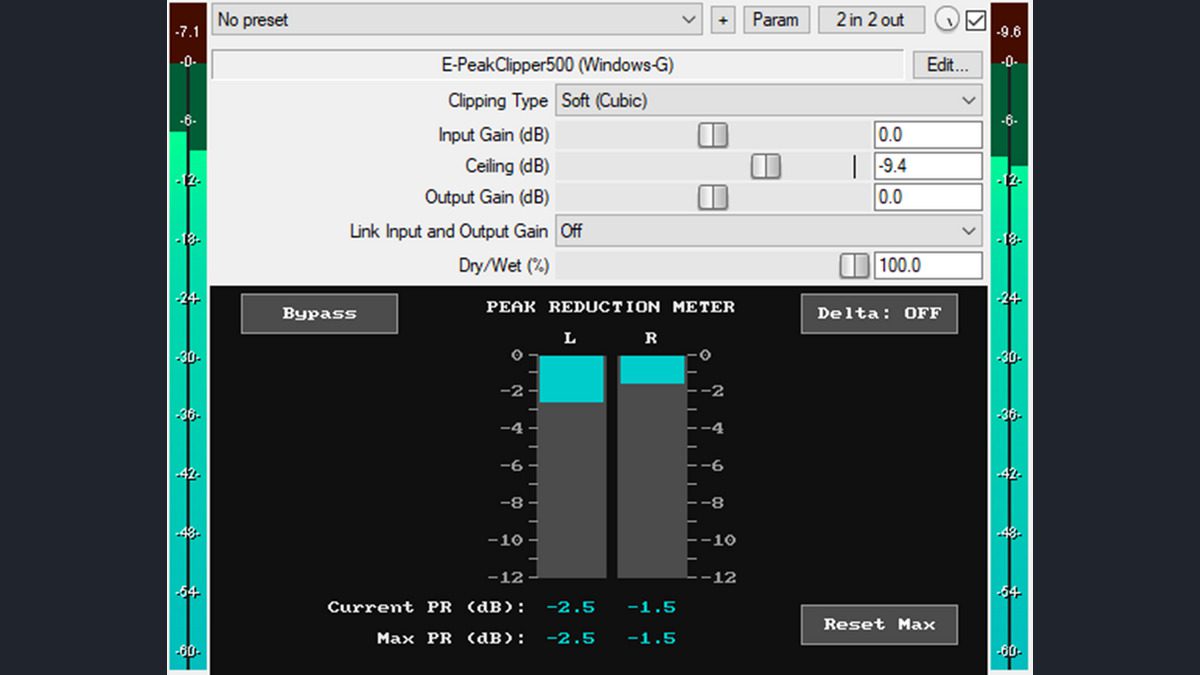
What Is E-PeakClipper500?
E-PeakClipper500 is designed to reduce signal peaks by clipping them above a selected ceiling. In practical production terms, that can help control sharp transients before a limiter, increase perceived density, shape drums or add deliberate harmonic character.
The plugin is not a limiter and it does not attempt to hide the fact that it is clipping. Instead, it gives you several clipping curves and enough monitoring to hear and see how much peak reduction is taking place.
At a Glance
- Developer: Windows-G
- Price: Free / pay what you want
- Format: VST3
- Operating system: Windows
- Clipping modes: Soft, Soft+Hard and Hard
- Oversampling: Off, x2, x4, x8 and x16
- Monitoring: Peak Reduction, Max PR and Delta
- Licence: Personal and commercial use
Three Clipping Modes
The central feature is the choice of three clipping algorithms. This makes the plugin useful both as a clean peak-control tool and as a more obvious tone-shaping processor.
Soft (Cubic): The soft curve creates a smoother transition into clipping and introduces a dominant third harmonic. It is a good starting point when you want peak control with less abrupt distortion.
Soft + Hard: This mode blends soft and hard clipping in a 50/50 balance. It sits between the gentler soft curve and the more aggressive digital hard clip.
Hard: A direct digital clipping mode for firm peak shaving and a more obvious clipped character when driven harder.
There is no universal best mode. The right choice depends on the source, the amount of gain being pushed into the clipper and how much distortion the production can tolerate. Kicks, snares and percussion often accept stronger clipping than vocals, pads or acoustic material.
Input, Ceiling and Output Gain
E-PeakClipper500 provides an Input Gain range from -30 dB to +30 dB. Increasing input gain pushes more signal into the clipping stage, which increases peak reduction and harmonic content.
The Ceiling control ranges from -30 dB to 0 dB and determines the level above which clipping occurs. Output Gain also ranges from -30 dB to +30 dB, so you can compensate after processing and compare the result at a more sensible listening level.
Useful workflow: Increase the Input Gain until the Peak Reduction meter shows the amount of clipping you want, then compensate with Output Gain. Level-matched comparisons make it much easier to decide whether the clipper is actually improving the sound rather than simply making it louder.
Linked Gain Control
The plugin includes a link function that creates an inverse relationship between input and output gain. When linked, driving the clipper harder can automatically reduce the output level in the opposite direction.
This is especially helpful during mastering or mix-bus work because loudness differences can fool the ear very quickly. A louder signal often appears more exciting even when the processing itself is not better.
Oversampling up to x16
E-PeakClipper500 includes oversampling settings of Off, x2, x4, x8 and x16. The developer uses the r8brain resampler for this section.
Oversampling processes the clipping stage at a higher internal sample rate before returning the signal to the project sample rate. This can reduce audible aliasing when non-linear processing creates harmonics above the available frequency range.
Practical tip: Higher oversampling is not automatically better for every source. Start at x2 or x4, listen carefully, then move higher when the cleaner high-frequency behaviour is worth the additional processing cost.
Peak Reduction Metering
Each channel has a Peak Reduction meter with a visible range from 0 to -12 dB. The meter is placed after the dry/wet stage, so it reflects the processed balance you are actually hearing.
The interface also shows the current PR value and the maximum PR reached on each channel. That is useful when short transients are being clipped too quickly to judge by eye in real time.
A Reset Max control clears the stored maximum reading, and the plugin can reset the value automatically when playback begins. This makes it easy to analyse the same chorus, drop or drum passage repeatedly.
Dry/Wet and Delta Monitoring
The Dry/Wet control allows parallel clipping directly inside the plugin. Lower wet values can preserve more of the original transient shape while still adding some density and harmonic character from the clipped signal.
The Delta button solos the difference between the wet and dry signals. In other words, it lets you hear the material being changed or removed by the processing.
Why Delta matters: If the Delta signal contains only tiny transient edges, the clipping is probably subtle. If you hear large parts of the kick, snare, vocal or whole mix, the processor is doing much more than shaving a few peaks.
Smooth Bypass for Better Comparisons
E-PeakClipper500 includes a smooth bypass system that takes input gain into account and can be automated. This is a small feature, but an important one when evaluating clipping in context.
Fast hard switching can create clicks or make comparisons misleading. A smoother bypass encourages proper A/B listening, especially on a master channel where small tonal and transient changes can matter.
Where E-PeakClipper500 Can Be Useful
Drums: Shave very short peaks from kicks, snares and drum buses before compression or limiting.
Electronic music: Add density and control to transient-heavy material where a few peaks are reducing available headroom.
Mix bus: Catch occasional peaks before the final limiter and reduce how hard the limiter has to work.
Mastering: Use conservative clipping before limiting to trade a small amount of transient peak for additional loudness.
Sound design: Push the Hard mode more aggressively for deliberate digital edge and distortion.
Clipping is most effective when it solves a specific problem. Removing one or two decibels from a very sharp transient can be transparent on the right material. Removing much more can quickly change punch, tone and stereo detail.
Video: Understanding Clipping and Oversampling
Windows-G does not currently provide an official E-PeakClipper500 video demo on the product page. The tutorial below is therefore included as a general educational companion. It explains hard versus soft clipping, harmonic behaviour and why oversampling matters when using clippers.
Compatibility
- Plugin format: VST3
- Operating system: Windows
- Plugin type: Peak clipper / dynamics processor
- UI: Retina and high-DPI compatible with zoom options
- CPU: Designed for minimal CPU use
- Licence: Personal and commercial use
The current VST3 release is Windows-only. Mac and Linux producers should not download it expecting a native version for those platforms.
How to Download E-PeakClipper500
- Open the official Windows-G Gumroad product page.
- Enter 0 in the price field if you want the free download.
- Complete the Gumroad checkout.
- Download and extract the supplied files.
- Install the VST3 file in the standard VST3 location used by your Windows system.
- Rescan plugins in your DAW if E-PeakClipper500 does not appear immediately.
FAQ
Is E-PeakClipper500 really free?
Yes. The official Gumroad listing uses a pay-what-you-want price, so the plugin can be downloaded for $0.
Can E-PeakClipper500 be used commercially?
Yes. The developer lists the licence for both personal and commercial use.
Does it support macOS?
No. The VST3 version is currently listed for Windows only.
Which clipping mode should I use?
Start with Soft for gentler peak shaping, Soft+Hard for a middle ground and Hard when you want firmer peak shaving or more obvious digital clipping. The best option depends on the source and the amount of gain reduction.
Should I always use x16 oversampling?
No. Higher oversampling can reduce aliasing, but it is not automatically necessary on every source. Compare x2, x4, x8 and x16 by ear and choose the lowest setting that gives the result you want.
Final Verdict
E-PeakClipper500 is a focused free clipping tool with a surprisingly complete monitoring section. The three clipping modes cover gentle and aggressive use, while x16 oversampling, Delta monitoring and persistent peak-reduction readings make it useful for more careful mixing and mastering work.
Its main limitation is straightforward: the native VST3 version is Windows-only. For compatible systems, however, it is an easy plugin to keep around for drums, buses and mastering chains where a few unruly peaks are stealing more headroom than they deserve.
Download E-PeakClipper500 for Free
Get the Windows VST3 edition directly from the official Windows-G store.