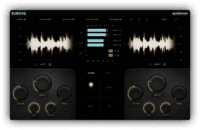

Aurora by Schematic Sound is a free waveform visualizer VST plugin designed for producers, mixing engineers, mastering engineers, sound designers and home studio users who want to see frequency balance inside the DAW in a more musical and immediate way. Inspired by the coloured waveforms found in DJ software, Aurora brings a scrolling RGB waveform display directly into a VST3 or AU plugin window.
The plugin does not process audio, compress anything, brighten your vocal or magically fix a muddy kick. Instead, it gives producers a visual way to understand how low, mid and high frequency energy changes over time. For arrangement, mixing, mastering, sound design and reference listening, that kind of visual feedback can be surprisingly useful.

What Is Aurora by Schematic Sound?
Aurora is a DJ-style waveform visualizer plugin from Schematic Sound. It shows the incoming audio as a scrolling coloured waveform, with frequency balance represented through colour. Low frequencies appear in red, mid frequencies appear in green and high frequencies appear in blue, with the final waveform colour showing how those bands interact over time.
The plugin is available as a free pay-what-you-want download and is now open-source. It supports Windows and macOS, with VST3 format on Windows 10 and Windows 11, and VST3/AU formats on macOS 13 or higher for Intel and Apple Silicon systems.
Aurora is not a spectrum analyzer in the traditional sense. It does not show a static frequency curve or a detailed technical graph. It shows a waveform that behaves more like the visual display producers and DJs know from software such as Rekordbox, Traktor or Serato, but adapted for DAW use.
Why This Free Waveform Visualizer VST Plugin Matters
The free waveform visualizer VST plugin category is more useful than it may sound at first. Producers already have meters, analyzers, oscilloscopes and loudness tools, but most of those show technical information in ways that can feel separate from the music.
Aurora gives a different kind of feedback. It helps users see how a track changes over time. A bass-heavy drop can appear redder. A bright cymbal section can push the waveform toward blue. A dense full-band chorus can show a more complex blend of colours. This makes it useful for quickly reading arrangement energy, frequency distribution and section contrast.
For producers who work visually, this can be a helpful addition to the mixing workflow. It gives another way to notice whether a track feels too static, whether the low end disappears in a breakdown, whether the high frequencies become too dominant, or whether different sections have enough contrast.
Main Features
- Free waveform visualizer plugin for producers, engineers and home studio users.
- DJ-style coloured waveform display inside the DAW.
- RGB frequency visualization using red for lows, green for mids and blue for highs.
- Three-band frequency split for visual frequency balance over time.
- Adjustable low and high crossover controls for adapting the display to different genres and mixes.
- Colour mixer for changing how strongly each frequency band affects the final waveform colour.
- History control for adjusting how much time is visible in the scrolling display.
- Gain control for changing waveform height without affecting audio output.
- Compact view with controls hidden for saving screen space.
- Dark theme added in version 1.1.0.
- Mono L+R waveform mode as the default mode in version 1.1.0.
- Pause waveform scrolling by clicking the waveform during playback.
- Open-source and pay-what-you-want with the previous activation system removed.
- Windows VST3 support for Windows 10 and Windows 11.
- macOS VST3 and AU support for macOS 13 or higher, Intel and Apple Silicon.
A DJ-Style Waveform Inside the DAW
The main idea behind Aurora is simple: bring the visual language of DJ software into music production. DJs often rely on coloured waveforms to understand track sections, bass energy, breakdowns, drops and transitions quickly. Aurora applies that same visual idea to DAW sessions.
This is useful because DAW waveforms are often monochrome or limited in what they reveal. A normal waveform can show amplitude and transient shape, but it does not immediately show whether the energy comes from low end, midrange or high-frequency content. Aurora adds that extra layer of information through colour.
For arrangement work, this can be helpful. Producers can compare sections visually and see whether the chorus has more full-spectrum energy than the verse, whether the drop contains enough bass weight, or whether a breakdown is dominated by high-frequency material. It is not a replacement for listening, but it can guide attention quickly.
Frequency Colours and Crossover Control
Aurora splits the incoming signal into low, mid and high frequency bands, then blends those bands into a coloured waveform. The low and high crossover controls allow the user to decide where those bands are separated.
This matters because different genres place energy in different areas. In bass-heavy electronic music, deep sub content may need closer attention. In rock or pop, the low-end weight may sit higher, around bass guitar, kick body and lower guitars. In vocal-heavy music, the upper mids and highs may be more important for clarity and presence.
By adjusting the crossover points, users can make Aurora respond more meaningfully to the material they are working on. A techno producer may want a low crossover that highlights sub-bass movement. A pop producer may want to isolate bright vocal presence and cymbal information more clearly. The plugin gives enough control to adapt the display without making the workflow complicated.
Colour Mixer, History and Gain
The colour mixer lets users control how much each frequency band contributes to the final waveform colour. This can be useful when the default balance does not visually match the way a producer wants to read the mix.
The History control changes how much time is visible in the scrolling display. A shorter history gives a faster, more detailed view of recent audio movement. A longer history gives a broader look at sections and arrangement changes. This makes Aurora useful for both micro and macro listening.
The Gain control changes the vertical waveform size without changing the audio output. This is important because the plugin is a visual tool, not a gain processor. Users can make the display easier to read without affecting the mix, which is exactly how an analyzer should behave.
Sound, Workflow and Creative Use
Aurora does not change the sound. Its value comes from workflow. It can stay open while producers work, showing how the track moves and how frequency balance shifts over time.
During mixing, Aurora can help identify sections that feel visually unbalanced. If the waveform becomes overwhelmingly red, the low end may deserve closer listening. If it becomes mostly blue, the upper frequencies may be dominating. If a chorus and verse look almost identical, the arrangement may lack contrast.
During mastering, Aurora can help compare references and observe how full-track energy behaves across sections. It will not replace loudness meters, spectrum analyzers or true peak tools, but it can give a fast visual impression of musical movement and tonal balance.
For sound design, the plugin can be useful when testing effects chains. Distortion, filtering, compression, sidechain movement and EQ changes can all alter how the waveform colour behaves. This gives producers a quick visual way to see how processing changes the frequency distribution over time.
Why Visual Tools Still Matter in Music Production
Mixing is primarily an audio decision, but visual tools can help producers work faster and more accurately. A good visualizer does not replace the ear. It points the ear toward things worth checking.
Aurora is useful because it visualizes time and frequency together. A spectrum analyzer shows frequency energy in a moment. A waveform shows amplitude over time. Aurora sits between those ideas by showing a scrolling waveform coloured by frequency content.
This is especially useful in modern DAW sessions, where producers may work with dense arrangements, layered samples, automation, sidechain effects and fast section changes. Seeing frequency balance over time can make it easier to understand the structure of a track at a glance.
Open-Source and Pay-What-You-Want
One of the most important recent changes is that Aurora is now open-source and pay-what-you-want. Version 1.1.0 removed the previous licensing and activation system, making the plugin easier to access and use.
This is good news for producers who want simple tools without account friction, activation limits or unnecessary setup barriers. It also allows technically minded users to inspect the source code, contribute to development or learn from the project.
Open-source audio tools matter because they give the music production community more transparency and long-term flexibility. A free plugin with public source code has a different kind of value than a closed demo tool that may disappear at any moment.
Who Should Use Aurora?
Aurora is ideal for producers, DJs, mixing engineers, mastering engineers, sound designers, electronic musicians and home studio users who want a visual tool for understanding frequency balance and arrangement movement.
Electronic producers may find it especially useful for drops, breakdowns, bass sections and energy changes. Mixing engineers can use it as a quick visual reference while balancing low, mid and high content. Mastering engineers can use it alongside other meters for broader section awareness. DJs who also produce may immediately understand its waveform language.
It is less suited to users looking for a plugin that changes the sound. Aurora will not add warmth, punch, width or magic dust. It will simply show what is happening, which is sometimes more useful and slightly less likely to lie to you than a preset called “Instant Master”.
Best Use Cases for Producers
Arrangement Energy Checks
Use Aurora to compare verses, choruses, drops, breakdowns and transitions. The waveform colour can help reveal whether different sections have enough contrast.
Low-End Monitoring
Watch how low-frequency energy appears over time, especially in bass-heavy genres such as house, techno, drum and bass, trap and hip-hop.
Reference Track Comparison
Place Aurora on reference tracks and compare how their frequency-coloured waveform behaves against your own mix.
Sound Design Feedback
Use Aurora while testing distortion, filtering, compression or modulation chains to see how processing changes frequency balance over time.
Mix Bus Observation
Keep Aurora open on the master bus while mixing to get a broad visual impression of tonal movement through the full track.
DJ-Oriented Production
Producers who also DJ can use Aurora’s familiar coloured waveform language to understand how a track might read visually in performance software.
Teaching and Learning
Aurora can help beginners connect what they hear with what is happening across low, mid and high frequency bands over time.
Compatibility and Download Details
Aurora is available as a free pay-what-you-want download from Schematic Sound. It is available in VST3 format for Windows 10 and Windows 11, and in VST3/AU formats for macOS 13 or higher on Intel and Apple Silicon systems.
- Official website: Aurora by Schematic Sound
- Download: Download Aurora for free
- Source code: View Aurora on GitHub
Industry Impact: Free Visual Tools Are Getting More Useful
Aurora shows that free plugins do not need to be instruments or effects to be valuable. Sometimes the most useful tool is one that improves decision-making. A clear visualizer can help producers understand their sessions faster, especially when working with dense arrangements or frequency-heavy genres.
The open-source move also gives Aurora extra relevance. It makes the plugin more accessible, removes activation friction and gives the wider community a chance to inspect or contribute to the project.
For independent producers, this matters because workflow tools can be just as important as sound tools. A good visualizer can help users mix with more awareness, arrange with more contrast and catch issues before they become harder to fix.
What Happens Next
Aurora is still evolving. Planned development includes tempo-based history lengths, performance optimizations and additional theme options. That suggests the plugin may become more flexible for long-term workflow use.
The best way to test it is simple: place Aurora on the master bus, play a full track and watch how the waveform changes across sections. Then load a reference track and compare. If the display helps you notice something your ears want to check, the plugin is already doing its job.
Final Verdict
Aurora by Schematic Sound is a smart free waveform visualizer VST plugin for producers who want DJ-style coloured waveforms inside the DAW. It does not process audio, but it can make frequency balance and arrangement movement easier to understand at a glance.
With RGB frequency visualization, adjustable crossovers, colour mixing, history control, compact view, dark theme, open-source access and VST3/AU compatibility, Aurora offers a focused and genuinely useful workflow tool for modern music production.
For mixing, mastering, sound design, arrangement work and reference listening, Aurora is absolutely worth downloading. It will not make your mix better by itself, but it may help you see where the mix is trying to confess something.